
View from the Cloud
Friday, 18 February 2011


Wednesday, 2 February 2011
Microsoft stealing Google search results?
I think this story still has some way to go before we get to the bottom of it. I'm sitting back to watch with anticipation.
Microsoft’s Bing uses Google search results—and denies it
Microsoft’s Bing uses Google search results—and denies it
Published with Blogger-droid v1.6.6
Thursday, 9 December 2010
Better gmail for Android
Gmail for Android: better Priority Inbox support and improved compose
Published with Blogger-droid v1.6.5
Thursday, 18 November 2010
Google Apps Plus
Ten times more applications for Google Apps customers This is really going to open things up for Google Apps businesses. You'll be able to use extra services like Reader and Picasa from the one account.
Published with Blogger-droid v1.6.5
Tuesday, 9 November 2010
Tips & Tricks: Our favorite shade of beige, the ruler
Here's another sign that Google are improving their Docs product gradually and relentlessly. How long before it matches MS Office feature for feature?
But the ruler, like beige, can certainly have its charms. You can use the ruler to position your text anywhere on the page. And that makes it a powerful tool.
There are a number of blue shapes on the ruler -- these affect the positioning of each paragraph, and are either indents or tab stops.

All paragraphs have three indents: the first line indent
 ,the left indent
 , and the right indent
 .
.Dragging the first line indent adjusts the left padding of the first line of a paragraph, while the left indent adjusts all subsequent lines of a paragraph. If you drag the left indent along the ruler, the first line indent will follow it. The right indent adjusts how far a paragraph extends toward the right side of the page.
Tab stops
Sometimes you need to control the display of your text with more granularity than what you can accomplish with just indents. That’s where tab stops come in handy.

With tab stops, you can align text relative to a specific spot on the ruler. So that means that a left tab stop
 will left align text to a position on the ruler, a right tab stop
 will right align text to a spot on the ruler, while a center tab stop
 will center-align the text.
To move between tab stops, you can press the tab key, and subsequent text will align with the tab stop. You can add multiple tab stops by clicking on a spot on the ruler and selecting the appropriate tab stop.
 You can move the position of a tab stop by dragging it around the ruler. And to remove a tab stop, simply drag it off the ruler.
Margins
Tab stops and indents are great for adjusting individual paragraphs, but sometimes you want to change alignment for an entire document. For that, you can use margins.
You can adjust the left and right margins by dragging the gray space on either side of the ruler.
You can also adjust the left and right margins, as well as the top and bottom margins of your document from File -> Page setup.
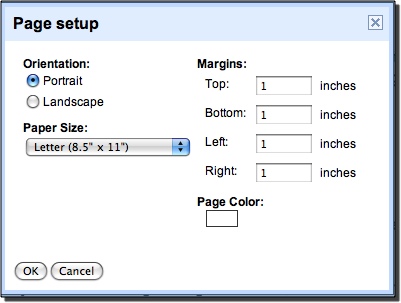
Once you get going, like with beige, it’s a bit surprising all of the things you can do with the trusty ruler.
Posted by: Luiz Pereira, Software Engineer

Friday, 22 October 2010
Created a new mini training video
I've just posted a new mini-training video to my companies web site. This one shows you how to setup delegated mailbox access in Google Apps email.
Wednesday, 20 October 2010
Drag and drop images in documents
Another handy new feature added to Google Apps. How long will it be before Google Docs has all the power of MS Office?
Drag and drop images in documents: "When writing a document, it often helps to augment text with images and diagrams. Google documents already has three ways to add images: you can choose them from your hard-drive, add them by URL, and you can find them using Google Image Search.
But sometimes the exact image you need is on your desktop and you just want to add it to your document quickly. Starting today, you can drag images from your desktop directly into your documents.


For now, you can use image drag and drop with the latest versions of Google Chrome, Firefox, and Safari. We’ll enable it on other browsers as soon as they support the feature.
Posted by: Philipp Weis, Software Engineering Intern

Subscribe to:
Posts (Atom)